

Full SSL from Cloudflare to your Rails app with Kamal
If you’re using Cloudflare for your app, it’s comforting to be able to enable the proxy with strict SSL connections and not just DNS or flexible. This hides the originating IP and puts your server behind Cloudflare’s shields and network scale.

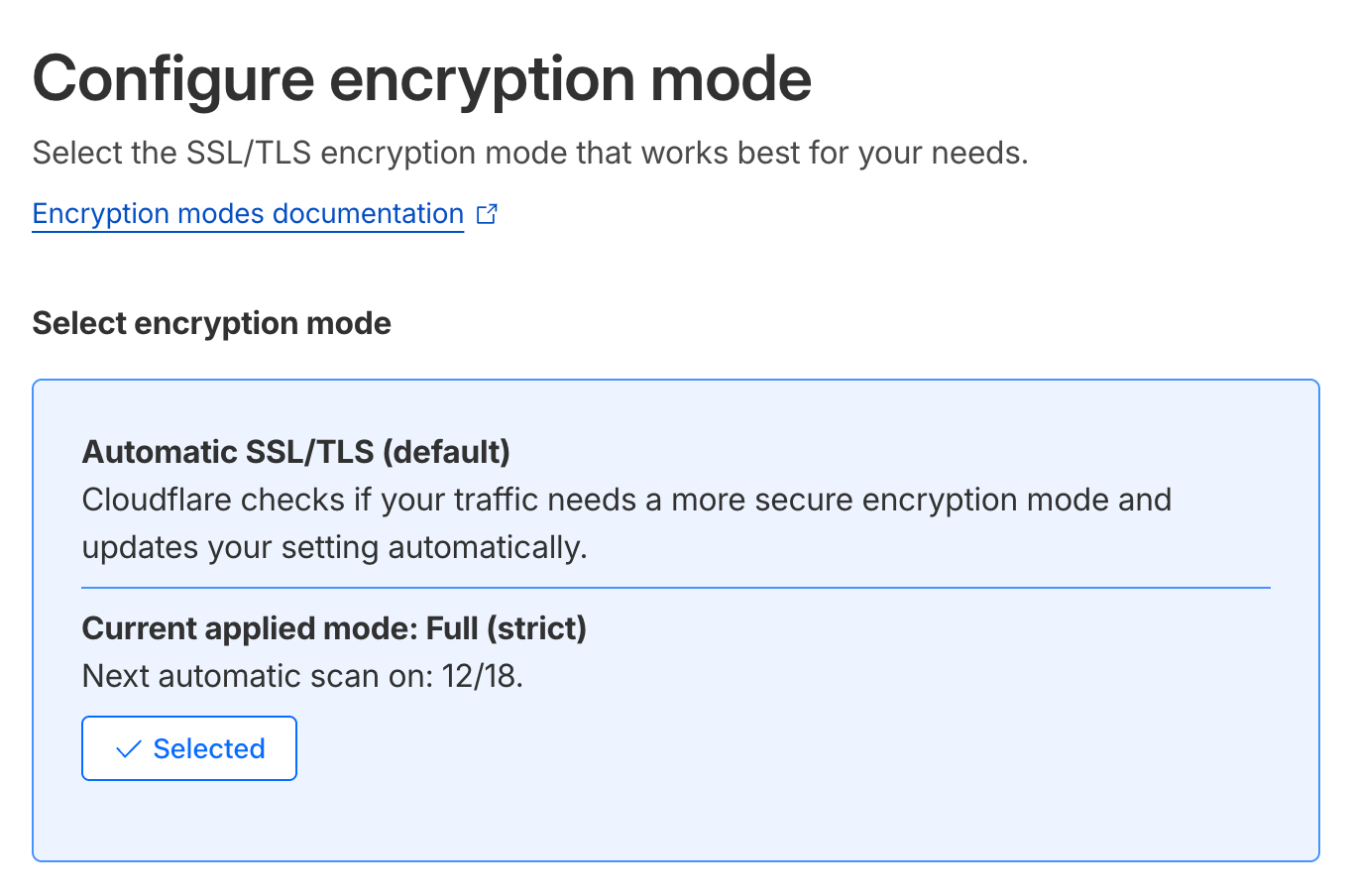
To get there with Rails, there are a few things you have to enable within your production environment config file.
force_ssl
This is commented out in new Rails apps, but you’ll want to uncomment it so that all requests are served over https. This also enforces secure cookies, which you definitely want in place.
From the Rails Guides for force_ssl:
Forces all requests to be served over HTTPS, and sets "https://" as the default protocol when generating URLs. Enforcement of HTTPS is handled by the ActionDispatch::SSL middleware, which can be configured via config.ssl_options.
config.force_ssl = true
host_authorization
Since we’re forcing SSL though, we need to exclude the healthcheck route that Kamal checks; typically, this is /up for a new Rails app. If we don’t exclude our healthcheck route then it will fail because the healthcheck is checking via container+port combination, it’s not SSL or host-based.
When Kamal does the healthcheck for your app, it’s just running locally on your server and utilizes kamal-proxy to see if it can connect over port 80 to your healthcheck endpoint. If you look at the target option, you’ll see the container ID and port 80, --target="1cde3bd74f9f:80".
INFO [c4ed7fea] Running docker exec kamal-proxy kamal-proxy deploy hey-production --target="1cde3bd74f9f:80" --host="primary.example.com" --tls --deploy-timeout="30s" --drain-timeout="30s" --buffer-requests --buffer-responses --log-request-header="Cache-Control" --log-request-header="Last-Modified" --log-request-header="User-Agent" on 867.53.0.9
Your container is likely just running Puma, which isn’t doing anything with SSL termination and just listening on port 80 or 3000, depending on how you’ve configured it. Rails 8 does ship with Thruster, which has automatic TLS, but it’s not enabled by default, and that’s one extra TLS negotiation we don’t need.
So we can just add this simple exclude option for our healthcheck endpoint.
config.host_authorization = { exclude: ->(request) { request.path == "/up" } }
assume_ssl
Since we’re using Cloudflare to terminate SSL first, we can go ahead and assume that SSL has already been taken care of with the assume_ssl option. We can assume SSL is in place because we’ll have Cloudflare terminating SSL, communicating via strict SSL to kamal-proxy on our server which is then communicating via the Docker network to our container.
config.assume_ssl = true
hosts
The hosts config option ensures that your Rails app is just responding to known hosts to prevent any DNS rebinding or Host header attacks. I typically just set an array of hosts in the Rails credentials file to handle this, something similar to this:
hosts:
  - primary.example.com
  - secondary.example.com
Since it’s just a simple array, we can set it directly in our staging/production environment.
config.hosts = Rails.application.credentials.hosts
Kamal config
Automatic SSL certs aren’t enabled by default with Kamal, but they’re pretty simple to get going.
First, you’ll need to point DNS to your server. This is important because when Let's Encrypt tries to verify the cert, DNS needs to point to your server.
Once you have DNS pointed to your server, then you can enable SSL at the proxy level and deploy your app.
proxy:
  ssl: true
  host: primary.example.com
tldr;
Here’s the TLDR; with everything in place.
First and very important, point DNS to your server.
Then, you can apply the updates below.
config/environments/production.rb:
Rails.application.configure do
  config.force_ssl = true
  config.host_authorization = { exclude: ->(request) { request.path == "/up" } }
  config.assume_ssl = true
  config.hosts = Rails.application.credentials.hosts
end
config/deploy.yml (just the relevant pieces):
proxy:
  ssl: true
  host: primary.example.com
And now you can deploy!