

Preconfiguring your MCP servers for your team
When you’re working on an app with a team, you always have a set of tools/SAAS products that the team uses to triage, monitor, and build your app. Quite a few of these have MCP servers that your team can utilize to help research and build your app faster and, with better context at their fingertips.
An MCP server is essentially a chat layer on top of an existing API, and it gives you a way to chat with a service like you typically would in Claude, Codex, etc. For example, "Show me my open issues on GitHub" or "Show me my open todos on Basecamp". Or "Write a changelog for this release on GitHub, but keep it high-level for the rest of the company and post it on Basecamp, make sure to @ mention what everyone worked on".
.mcp.json
There’s actually an open standard that lets you define which MCP servers your client(Claude, Cursor, etc.) should launch and connect to for everyone working on an app/project. For example, if you’re using Honeybadger for errors, GitHub for issues/PRs, and Basecamp for project management, it’d be great if those were automatically configured for everyone. Instead of having every developer run something like claude mcp add or manually modify your editor/client settings file to point it to an MCP server. Or even if you’re working solo on a few apps, but one app uses Honeybadger and the other one uses Sentry, it’d be great if Claude just already knew to connect to Honeybadger instead of Sentry to triage issues.
.mcp.json is an open standard that works with all of the major clients that lets you pre-configure the MCP servers that you want to use for an app/project.
Here’s what it looks like when you start a new Claude session with a Basecamp(custom) and GitHub MCP server.
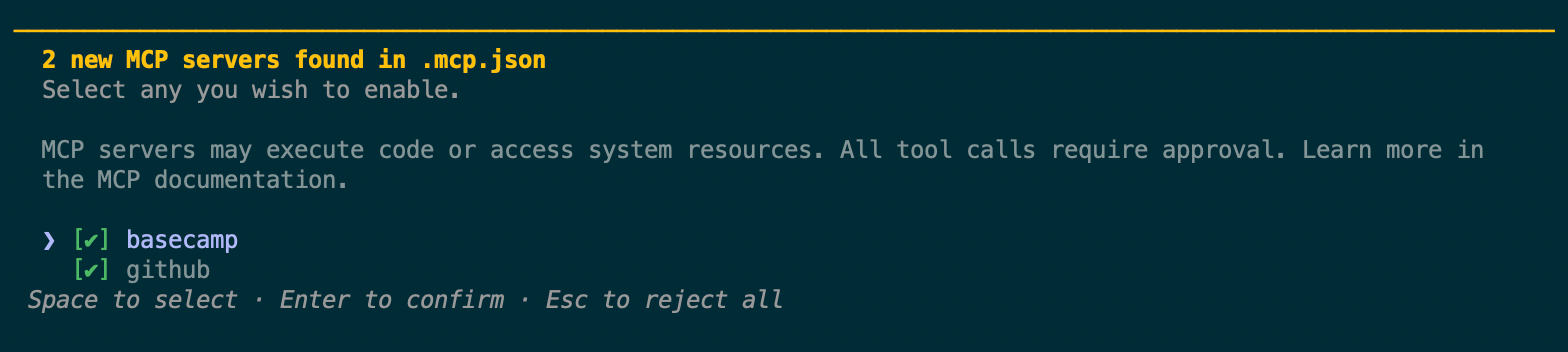
You can see it’s prompting to enable the 2 MCP servers that the app has defined, and anyone working on the same project will have these ready to utilize immediately. Your teammates don’t even need to reference how to set up the GitHub MCP; they can just ask it about open issues on GitHub.
OAuth-based MCP servers
Some MCP servers support dynamic OAuth registration, which is the simplest to configure; that’s how I built the Basecamp MCP server. Adding an OAuth-based MCP server is just a matter of pointing it at a URL and setting the type.
{
  "mcpServers": {
    "basecamp": {
      "type": "http",
      "url": "https://example-basecamp-mcp.com/mcp"
    }
  }
}
The first time your client wants to use the MCP server since it’s OAuth you’ll be prompted with an OAuth sign-in URL, once you’ve authorized that then you’re all set and can start using the MCP server.
❯ basecamp projects

  Called basecamp (ctrl+o to expand)

⏺ The basecamp MCP server needs authorization first. Please open this URL in your browser:

  https://example-basecamp-mcp.com/authorize?response_type=code&client_id=x&code_challenge=x&code_challenge_method=x&redirect_uri=x

  After authorizing, if the redirect page fails to load, paste the full URL from the address bar and I'll complete the flow.
API key-based MCP servers
Some MCP servers utilize an API key for authentication, which you can have your teammates configure locally. Honeybadger is a good example. Their official docs say to just add the plain text key in your settings config. I opted to move that to a project-specific, git-ignored rc file that the MCP sources before booting.
Here’s how I have the Honeybadger MCP configured for a project:
.honeybadgerrc
export HONEYBADGER_PERSONAL_AUTH_TOKEN=personal-access-token-from-honeybadger
.mcp.json
{
  "mcpServers": {
    "honeybadger": {
      "type": "stdio",
      "command": "sh",
      "args": [
        "-c",
        ". ./.honeybadgerrc && exec docker run -i --rm -e HONEYBADGER_PERSONAL_AUTH_TOKEN ghcr.io/honeybadger-io/honeybadger-mcp-server:latest"
      ]
    }
  }
}
The Honeybadger MCP config sources ./honeybadgerrc which just exports your access token when it boots that MCP server and mounts it as an environment variable for the Docker container. This also keeps your access token within the child MCP process; it doesn’t get exposed to the client’s agent process or your shell.
CLI-based MCP servers
GitHub also uses a different way to connect since they have their own CLI. This assumes that your team uses the GitHub CLI(gh) and that they’ve authenticated with it via gh auth login.
{
  "mcpServers": {
    "github": {
      "type": "stdio",
      "command": "sh",
      "args": ["-c", "GITHUB_PERSONAL_ACCESS_TOKEN=\"${GITHUB_PERSONAL_ACCESS_TOKEN:-$(gh auth token)}\" exec docker run -i --rm -e GITHUB_PERSONAL_ACCESS_TOKEN ghcr.io/github/github-mcp-server"]
    }
  }
}
Wrapping up
The full .mcp.json file includes a key for each MCP server, so combining them all:
{
  "mcpServers": {
    "basecamp": {
      "type": "http",
      "url": "https://example-basecamp-mcp.com/mcp"
    },
    "honeybadger": {
      "type": "stdio",
      "command": "sh",
      "args": [
        "-c",
        ". ./.honeybadgerrc && exec docker run -i --rm -e HONEYBADGER_PERSONAL_AUTH_TOKEN ghcr.io/honeybadger-io/honeybadger-mcp-server:latest"
      ]
    },
    "github": {
      "type": "stdio",
      "command": "sh",
      "args": ["-c", "GITHUB_PERSONAL_ACCESS_TOKEN=\"${GITHUB_PERSONAL_ACCESS_TOKEN:-$(gh auth token)}\" exec docker run -i --rm -e GITHUB_PERSONAL_ACCESS_TOKEN ghcr.io/github/github-mcp-server"]
    }
  }
}
The docs for most of these MCP servers have 2-3 options for how to configure them and various other details to look through. It's all pretty simple to get going, but it's just one more thing that you don't need to have every team member manually configuring. Preconfiguring your team’s MCP server is a really simple way to improve everyone's daily workflow and bring more context to everyone on the team out of the box.